# Color and style
Color, size, opacity, line style, quick styles, and filling areas with color.
Platforms: Web, iPad, iPhone, Android
The dot at the end of the toolbar shows your current color and size. Choose it to open the style panel.
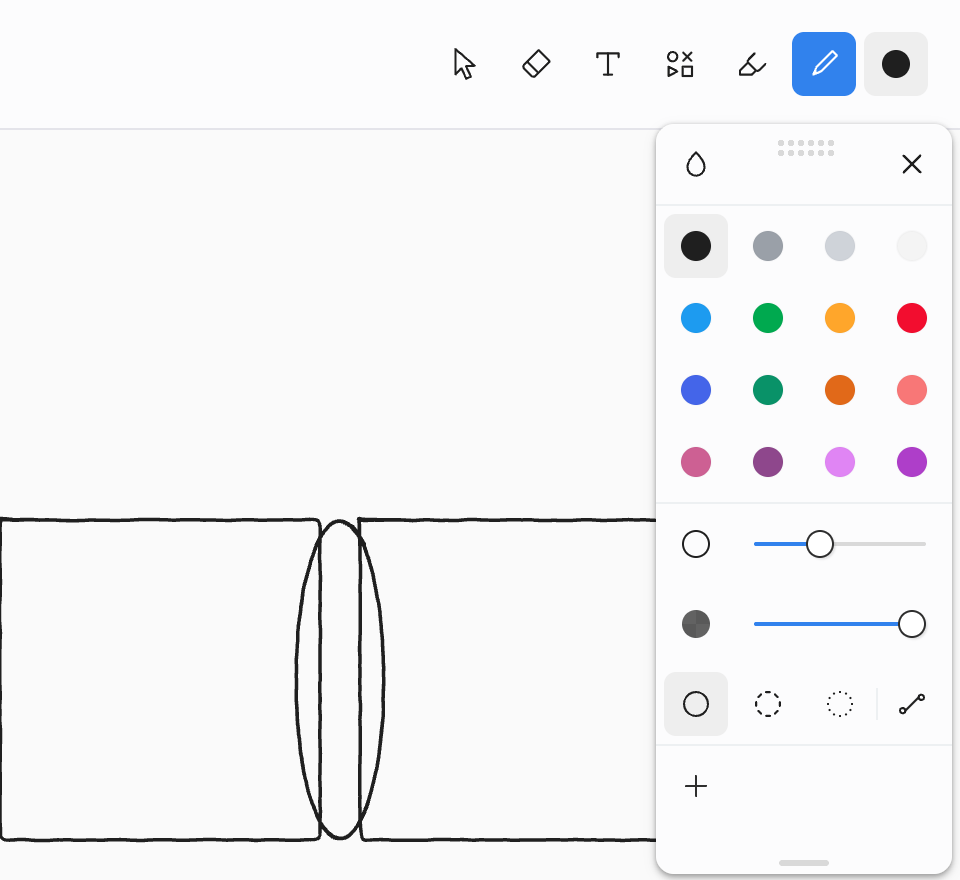
## What's in the panel
| Row | What it does |
| --- | --- |
| **Pick color** | The eyedropper. Choose it, then touch any ink to take its color. Keyboard: I on the web. |
| Colors | Black, grays, white, and a range of hues. Black is the default. Drag the bottom edge of the panel to show more rows. |
| **Size** | From fine to broad. On the web, Q picks small and W medium. |
| **Opacity** | From solid down to barely there. |
| Line style | **Solid**, **Dashed**, or **Dotted**, plus **Straight lines**. |
| Quick styles | Save the current color, size, and style with **+**, then apply it later in one tap. |
With something selected, the panel changes the selection instead of the next stroke. For [text](text.md), the panel shows **Sans**, **Serif**, and **Mono** fonts and left, center, and right alignment instead of size, line style, and quick styles.
Your tool settings and quick styles belong to the device, not the note. They're the same in every note on this device and don't sync to your other devices.
## Fill an area with color
Drag a color from the panel onto the canvas:
- Let go **inside a closed area**, like a box you drew, to fill it.
- Let go **on ink** to recolor it.
If the area isn't closed, nothing is filled and tldraw notes tells you so. On the web you can also press G, then click where you want the color. Each fill is one step you can undo.
## Panels move
Drag a panel by its handle to put it somewhere else. Choose × to close it.