# Exporting and printing
Save a note as PNG, SVG, or PDF, copy a selection as an image, print the page, or save and restore a backup of the whole note.
Platforms: Web, iPad, iPhone, Android
An export is a picture of everything on the page, framed to fit what you've drawn, not what's on screen right now.
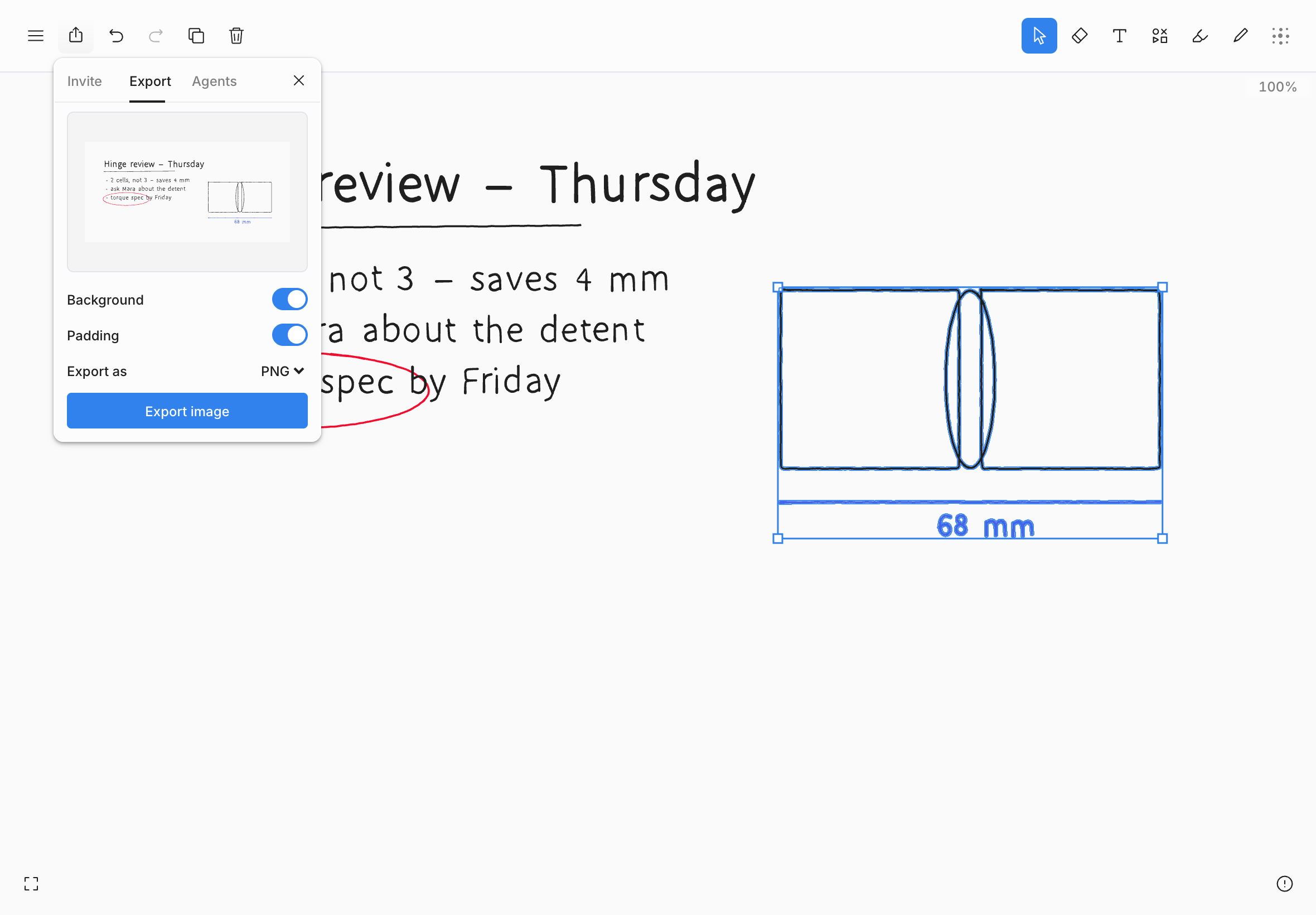
## Export a note
1. Choose **Share** in the top bar, then **Export**. Or choose **File › Export…** in the editor menu.
2. Set the options. The preview shows exactly what you'll get.
3. Choose **Export image**.
If something is selected, the export holds only the selection, and the button reads **Export selection**. A selection counts while the Select tool is showing it; after you switch to another tool, the export is the whole page again. You can also open the canvas's context menu (right-click, or touch and hold on iPad, iPhone, and Android) and choose **Export as › SVG**, **PNG**, or **PDF**: it exports the selection, or the whole page when nothing is selected, with the Background and Padding you last chose in the Export tab.
| Option | What it does |
| --- | --- |
| **Background** | On, the export has the page color and paper pattern behind it. Off, it's transparent, and the preview shows a checkerboard. |
| **Padding** | Adds a margin around your drawing. |
| **Export as** | **PNG** (the default), **SVG**, or **PDF**. |
All three formats contain the same drawing; they differ only in the kind of file. Use PNG for messages and documents, SVG to edit the drawing in a vector app, and PDF to print or file it. A PDF is a single page sized to the drawing.
| Platform | Where the file goes |
| --- | --- |
| Web | Your browser downloads it. |
| iPad, iPhone, and Android | The share sheet opens, so you can save it to Files or Photos, or send it straight to another app. |
## Missing images
If the note has images that haven't downloaded to this device yet, tldraw notes tells you before exporting, rather than saving a file with gaps in it. Wait for them to load, or choose **Export anyway**.
Every export includes [text](text.md) boxes.
An empty page has nothing to export: the panel says **Nothing to export**.
## Copy a selection as an image
To paste part of a note into another app, select it and choose **Copy as › PNG** in the **Edit** menu or the context menu, or press ⌘⇧C (on the web and iPad). This is on the web, iPhone, iPad, and Android. On iPhone, iPad, and Android an ordinary **Copy** also pastes into other apps as a picture.
## Print
Choose **File › Print…**, or press ⌘P on the web. tldraw notes prints the current page, framed to your drawing, on plain paper: the pattern is left out.
## Save a backup
Choose **File › Save backup…** to save the whole note as one `.tldn` file: every page object, with its images. Use it to keep your own copy of a note. A backup holds the note's content, not its sharing or its history.
| Platform | What happens |
|---|---|
| Web | The file downloads, named after the note. |
| iPad, iPhone, and Android | The share sheet opens, so you can save it to Files or send it to another app. |
If some images haven't downloaded to this device, the backup can't include them. On iPad, iPhone, and Android you're told how many before the file is saved, and **Export anyway** saves it without them; on the web the file downloads without them and a notice says how many were left out.
## Restore a backup
On the web, open the menu on the dashboard and choose **Restore backup…**, then pick a `.tldn` file. It becomes a new note in your library and opens; nothing you already have is changed. A backup saved by any earlier version of tldraw notes restores. One saved by a newer version asks you to update first. Restoring a backup needs a subscription, because the note goes into your synced library.