# Paper
Lines, dots, and grids behind your writing, and page-size guides.
Platforms: Web, iPad, iPhone, Android
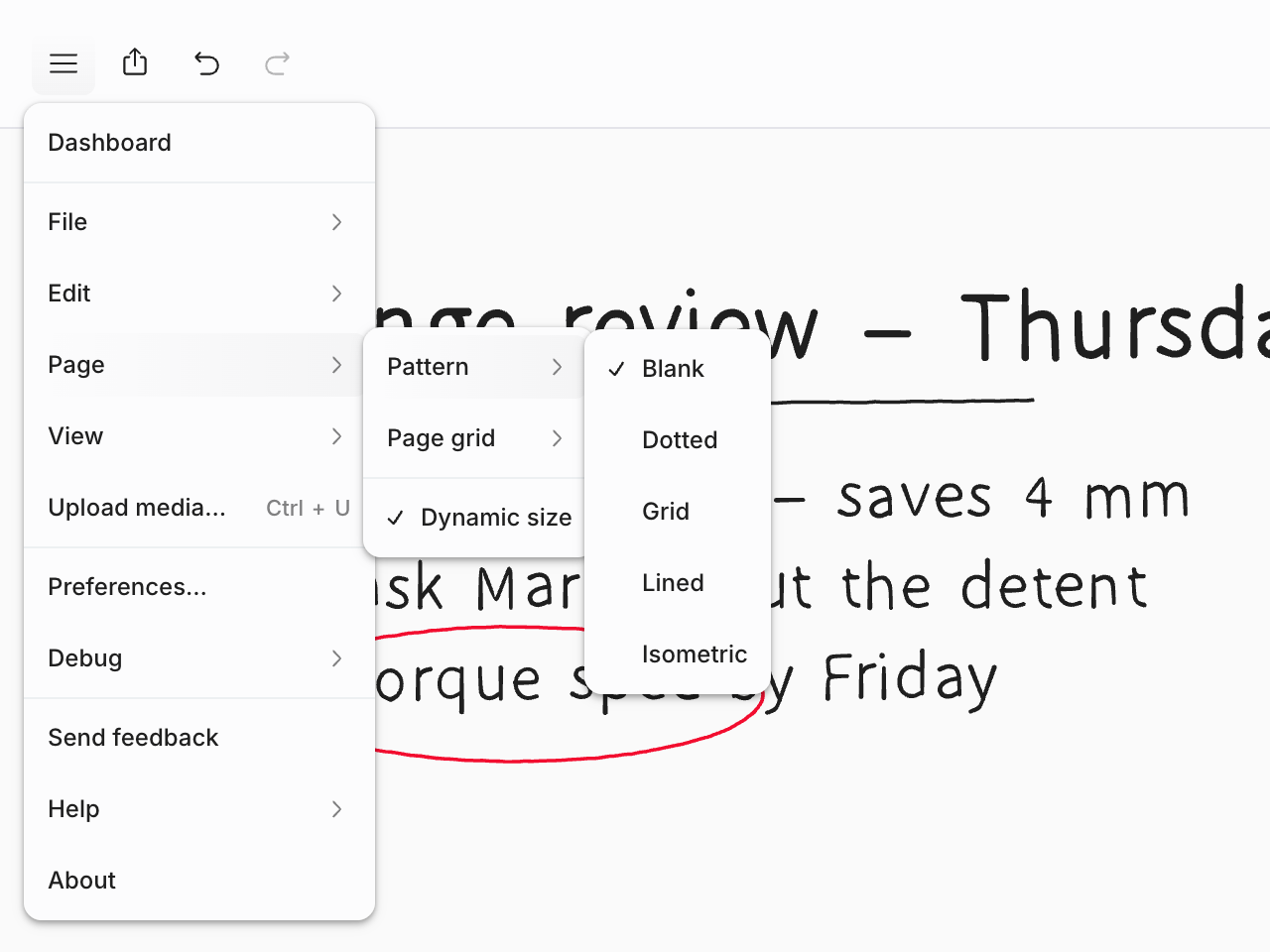
Every note can have a pattern behind it, like the paper in a notebook. Choose it from **Page** in the editor menu.
## Pattern
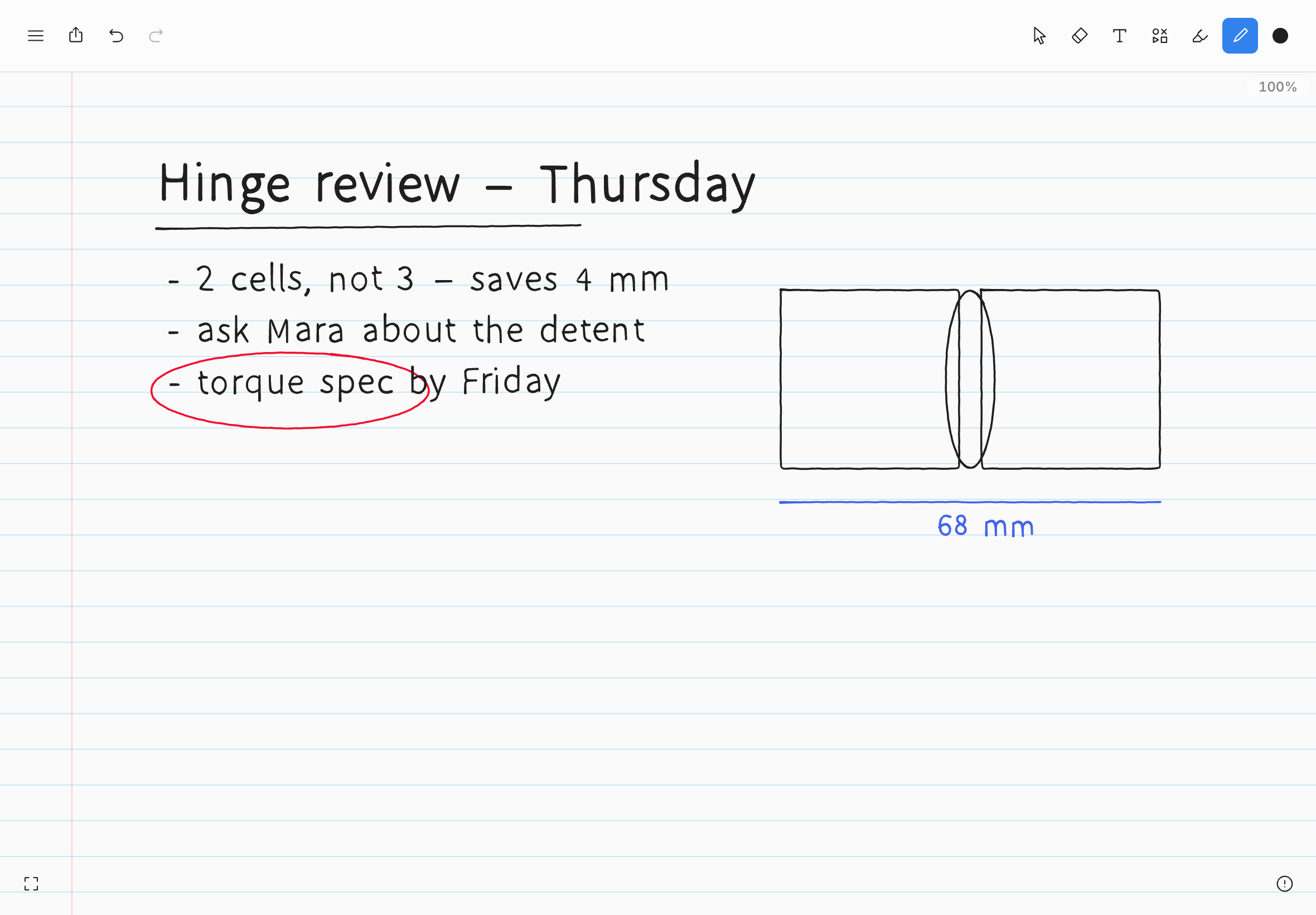
**Page › Pattern** offers **Blank**, **Dotted**, **Grid**, **Lined**, and **Isometric**. The pattern is part of the note, so collaborators see the same paper you do. ⌘; switches between Dotted and Blank.
## Page grid
**Page › Page grid** shows the outlines of pages across the canvas: **A4**, **Letter**, or **Square**. Use it when you're writing something you'll print or export page by page. **None** turns it off.
## Dynamic size
**Page › Dynamic size** keeps your pen and eraser the same size on screen at any zoom. Zoom in to write small, zoom out to draw big. It's on by default. Each note remembers its own setting on this device.
Turn it off when you want a pen size to mean the same thickness on the page whatever the zoom, which is useful for technical drawing.