# Selecting
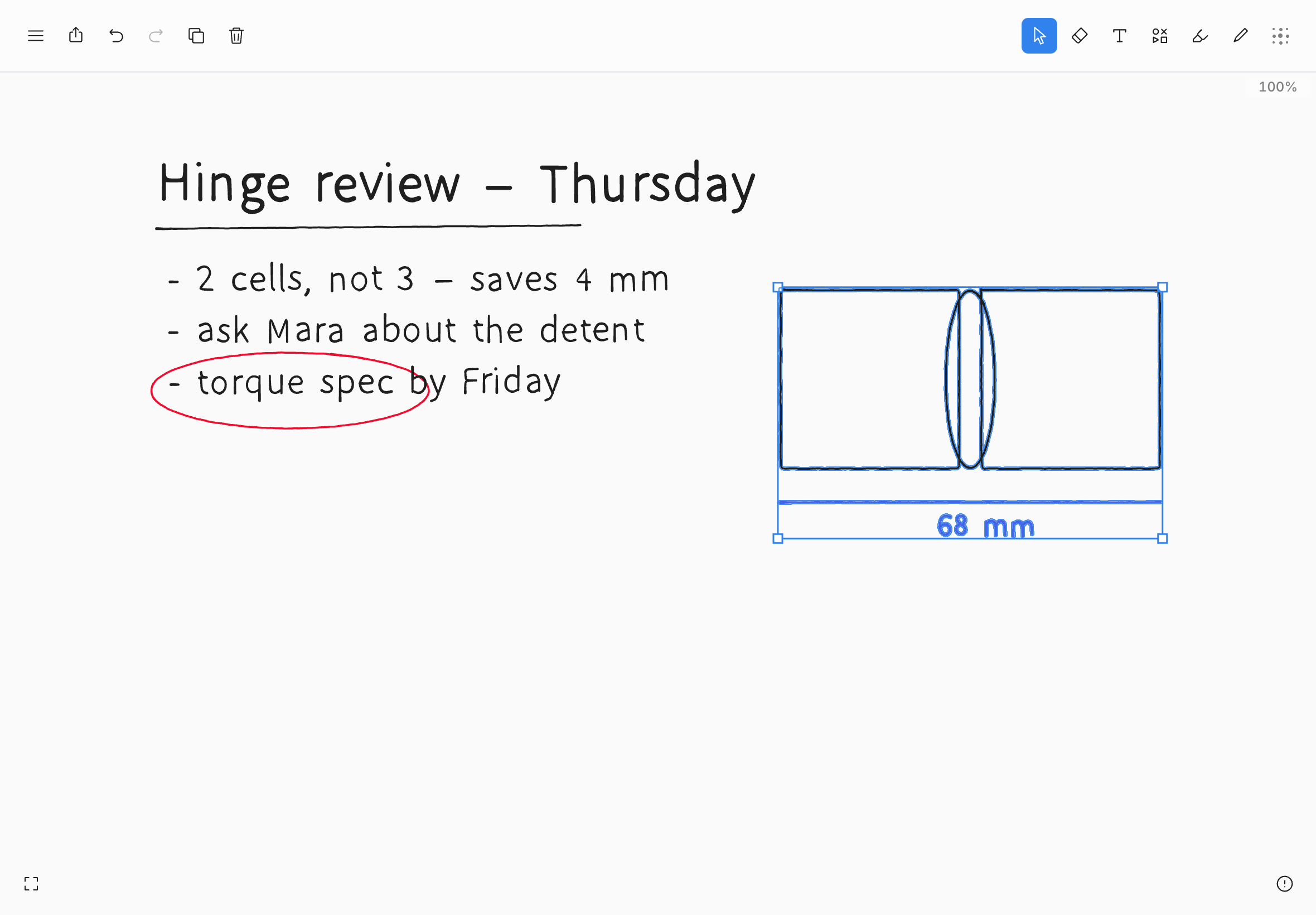
Select ink, then move, resize, rotate, copy, or delete it.
Platforms: Web, iPad, iPhone, Android
Choose **Select** in the toolbar, or press V.
## Make a selection
- **Tap** a stroke to select it.
- **Drag** across empty canvas to select everything inside the marquee.
The marquee is a rectangle or a free-form lasso. Choose **Select** again (or press V again) to switch; the button shows which you have.
**Select all** is in the **Edit** menu, or ⌘A.
## Change a selection
| To | Do this |
| --- | --- |
| Move | Drag the selection. Arrow keys nudge it; add ⇧ for bigger steps. |
| Resize | Drag a corner or edge handle. Hold ⇧ to keep proportions, ⌥ to resize from the center. On [text](text.md), dragging a left or right side handle changes its wrap width without scaling. |
| Rotate | Drag a rotate handle. Hold ⇧ to snap to 15°. With a finger, it settles onto a nearby right angle or 15° step. |
| Copy as you drag | Hold ⌥ (Alt) while dragging. |
| Restyle | Open the style panel and pick a color, size, or opacity. |
| Duplicate or delete | Use the **Duplicate** and **Delete** buttons in the top bar, or ⌘D and ⌫. |
Images and rotated items always keep their proportions.
Double-click or double-tap a [text](text.md) box with **Select** to edit it.
## The context menu
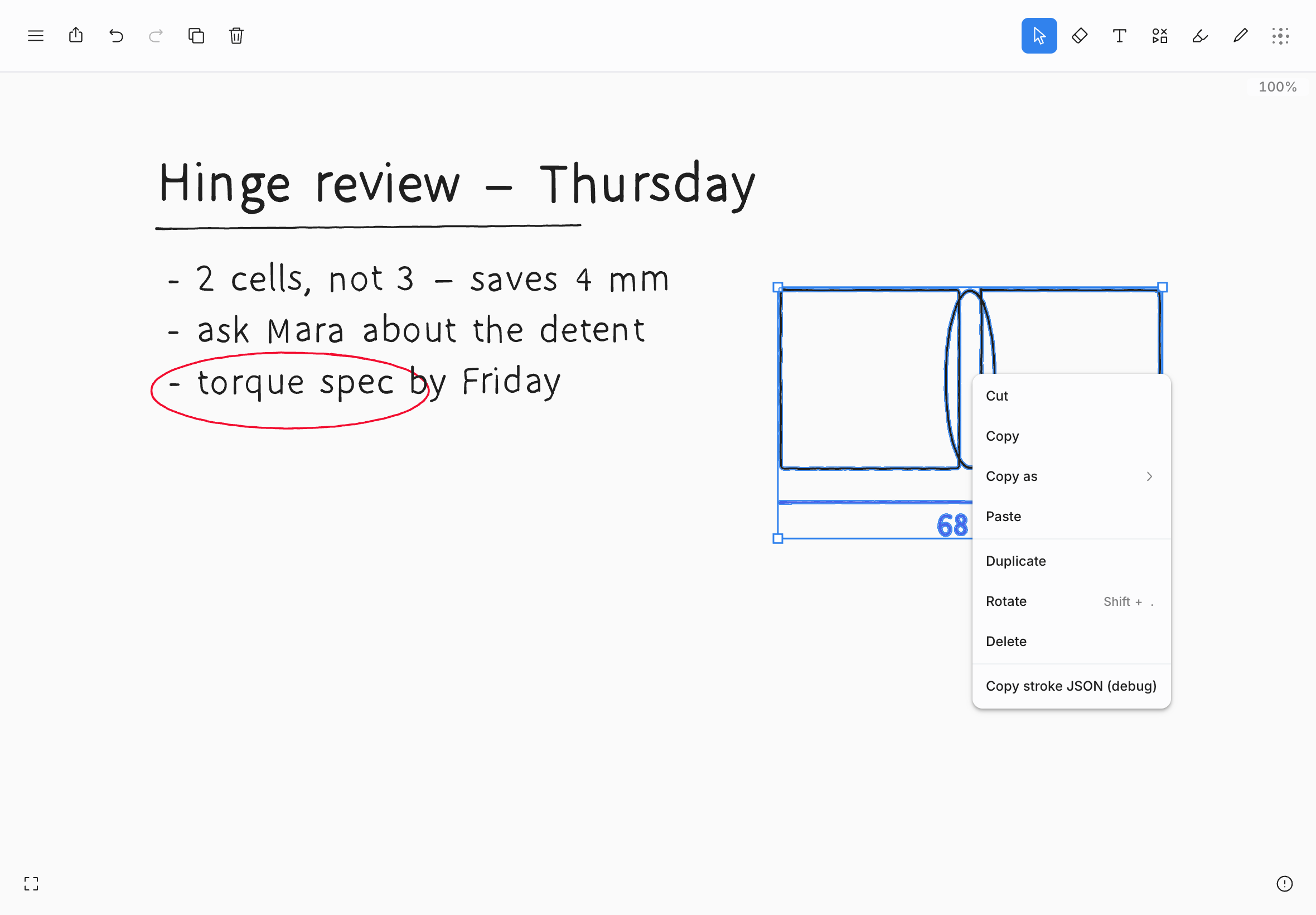
Right-click a selection, or touch and hold it, for **Cut**, **Copy**, **Copy as**, **Paste**, **Duplicate**, rotate, and **Delete**. When an image is selected, **Original image size** and **[Convert to ink…](convert-to-ink.md)** appear too. On empty canvas, the same gesture offers **Paste**, **Select all**, and **Clear canvas…**.
## Copy and paste
⌘C and ⌘V copy and paste between notes. **Copy as › PNG** copies the selection as an image for other apps, on the web, iPhone, iPad, and Android (⌘⇧C on the web and iPad). On the web, ⌘⇧V pastes where your pointer is. On iPad and Android, ⌘⇧V pastes in the middle of the screen.
A copy made on iPhone or iPad pastes into the web app, and one made on the web pastes into the iPhone or iPad app. Paste it into another app and you get a picture of what you copied.
Selections are yours: collaborators don't see what you've selected, and selecting something isn't a change you can undo.