Sharing and export
Convert to ink
Turn an image on the canvas into editable ink strokes and filled areas, on your device.
WebiPadiPhoneAndroid
Convert to ink… traces a photo, sketch, or diagram on the canvas into editable ink strokes and filled areas. Everything runs on your device.
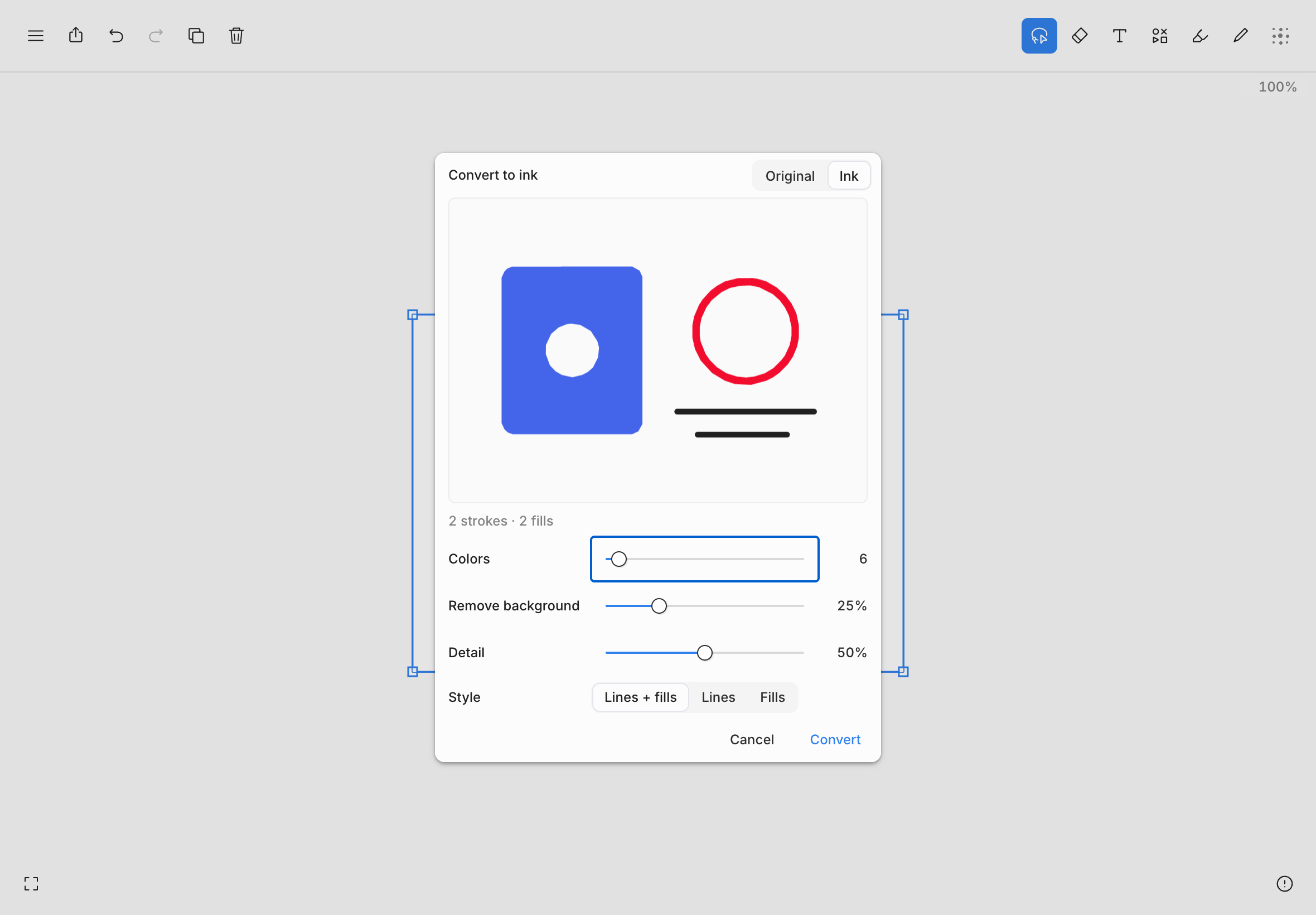
Convert an image
- With Select, right-click an image (or touch and hold it) to open its context menu.
- Choose Convert to ink….
- Adjust the sliders until the preview looks right.
- Choose Convert.
The converted ink replaces the original image in place and becomes your selection.
Settings
The Ink and Original toggle switches between the traced preview and your original image. Below the preview, tldraw notes shows how many strokes and fills the conversion creates, and says simplified if the output limit is reached.
| Setting | What it does |
|---|---|
| Colors | Caps how many distinct colors the converted ink uses, from 2 to 128, while keeping each region's own color. |
| Remove background | Drops light background areas. Off keeps the whole image. |
| Detail | Controls how finely small shapes and contours are traced. |
| Style | Lines + fills (the default) traces thin lines as strokes and solid areas as fills; Lines creates strokes only; Fills creates filled areas only. |
What you get
Every stroke and filled area created by Convert to ink… behaves like ink drawn by hand: you can select individual pieces, recolor them, erase parts of them, or resize them cleanly at any zoom.
Conversion is one step in your history, so one undo removes the ink and brings the original image back.