Using the canvas
Erasing
Three ways to erase, and how to erase only certain ink.
WebiPadiPhoneAndroid
Choose Erase in the toolbar, or press E. On iPad, double-tap or squeeze Apple Pencil to switch to the eraser and back, if that's how your Pencil is set up in iPadOS Settings.
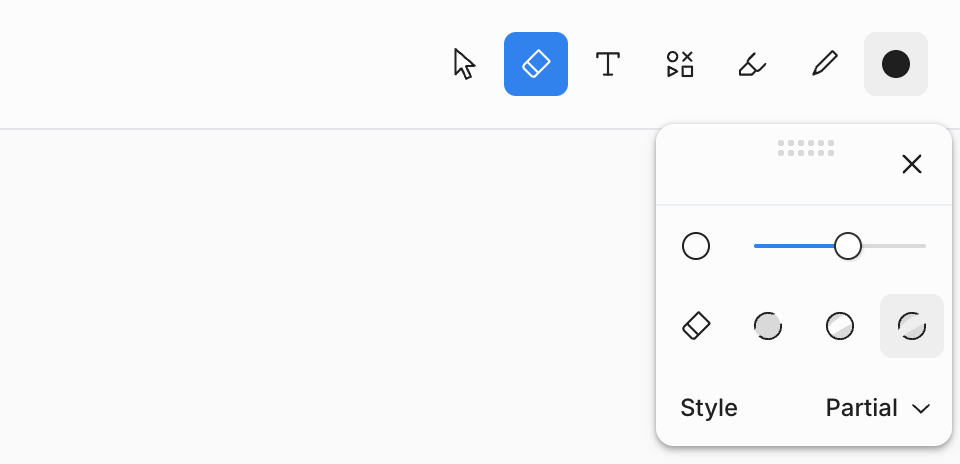
Eraser modes
Open the style panel with the eraser selected and choose a mode:
| Mode | What it erases |
|---|---|
| Partial | Just the parts of strokes the eraser passes over. The default. |
| Object | Whole strokes, as soon as the eraser touches them. |
| Mask | Exactly the area the eraser sweeps, with a clean edge, through ink and filled areas alike. Images are never cut. |
Touching a text box with the eraser deletes the whole box in any mode.
Hold ⌘ or Ctrl while erasing to switch to Object for that stroke. If you're already in Object, it switches back to your other mode.
On Android, the eraser modes are also in the editor's Page menu.
Erase only some ink
Eraser target limits what the eraser affects:
| Target | Erases |
|---|---|
| All | Everything. |
| Black | Only black ink, so color annotations survive. |
| Color | Only colored ink, so your black writing survives. |
Eraser size and growth
Set the size in the style panel. With Eraser growth on (the default, in Preferences), sweeping quickly makes the eraser grow, up to three times its size, so clearing a big area takes one pass. Slow down and it shrinks again. Lift and it's back to the size you set. The circle on screen always shows exactly what will be erased.
Every erase is one change, and one undo brings it all back.
Clear the page
To remove everything on the page, choose Edit › Clear canvas… in the editor menu, or right-click the empty canvas. tldraw notes asks first, and one undo brings it all back.