Application
Menus
What's in the library menu and the editor menu.
WebiPadiPhoneAndroid
There are two main menus, one in the library and one in the editor. They have the same shape on every platform. Settings aren't in menus; they're in Preferences.
The library menu
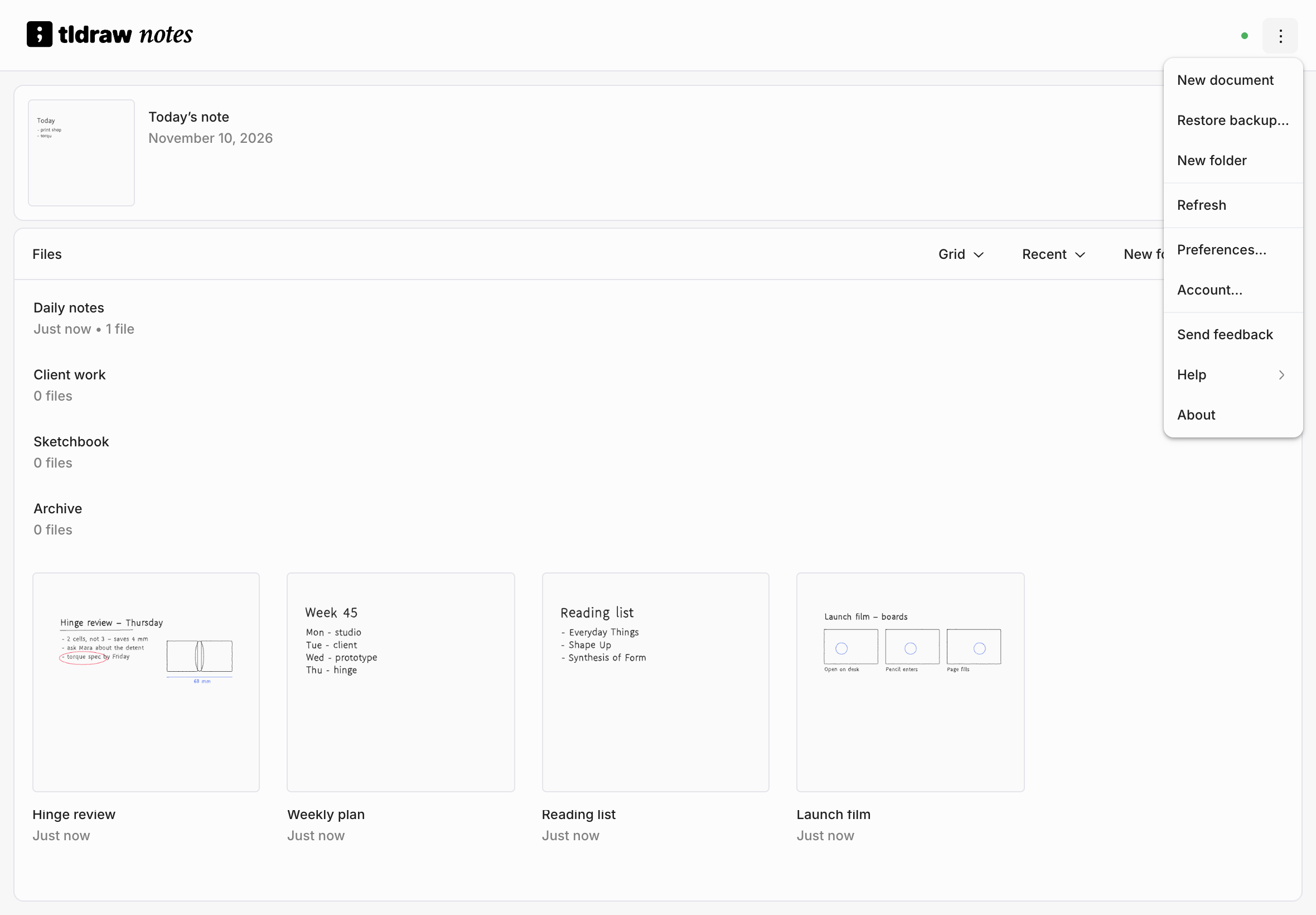
| Item | What it does |
|---|---|
| New document | Creates a note and opens it. |
| New folder | Creates a folder. Inside a folder, New folder inside. |
| Rename folder, Archive folder | Inside a folder, act on the folder you're in. |
| Local | Opens Local. iPad, iPhone, and Android. |
| Refresh | Checks the service for changes to your library. |
| Preferences…, Account… | Opens Preferences. Signed out on Android, Sign in…. |
| Send feedback | Tells us what's working and what isn't. |
| Help | This handbook, release notes, terms, and privacy policy. |
| About | About tldraw notes. |
The editor menu
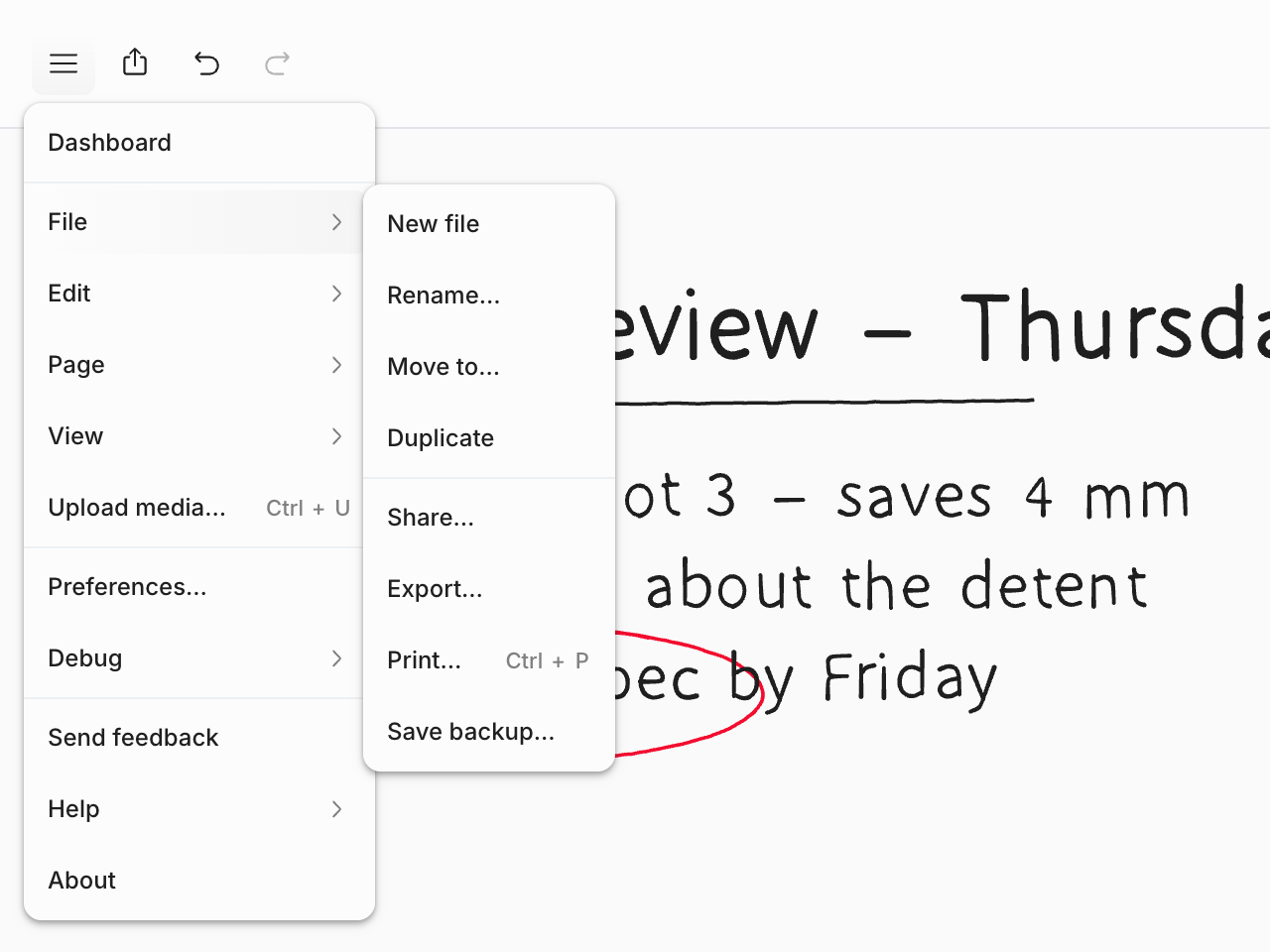
Dashboard goes back to the library. Below it:
File : New file, Rename…, Move to…, Duplicate, Share…, Export…, Print…, Save backup…. See Sharing and Exporting and printing.
Edit : Undo, Redo, Cut, Copy, Paste, Delete, Select all, and Clear canvas…. Also Copy as › PNG and Copy as › Link, on the web, iPhone, iPad, and Android.
Page : Pattern, Page grid, and Dynamic size. See Paper. On Android, the eraser modes are here too.
View : Show minimap, the zoom commands, the Horizontal, Vertical, and Free view modes, the camera options (Lock zoom, Pinch to zoom, Mouse wheel zoom, View rotation, and Edge scrolling), and Status bar (Show FPS and Show clock). See Moving around the canvas.
Upload media… : Adds an image or PDF to the canvas. See Images and PDFs.
Then Preferences…, Send feedback, Help, and About.