Application
The editor
Where everything is on the canvas screen.
WebiPadiPhoneAndroid
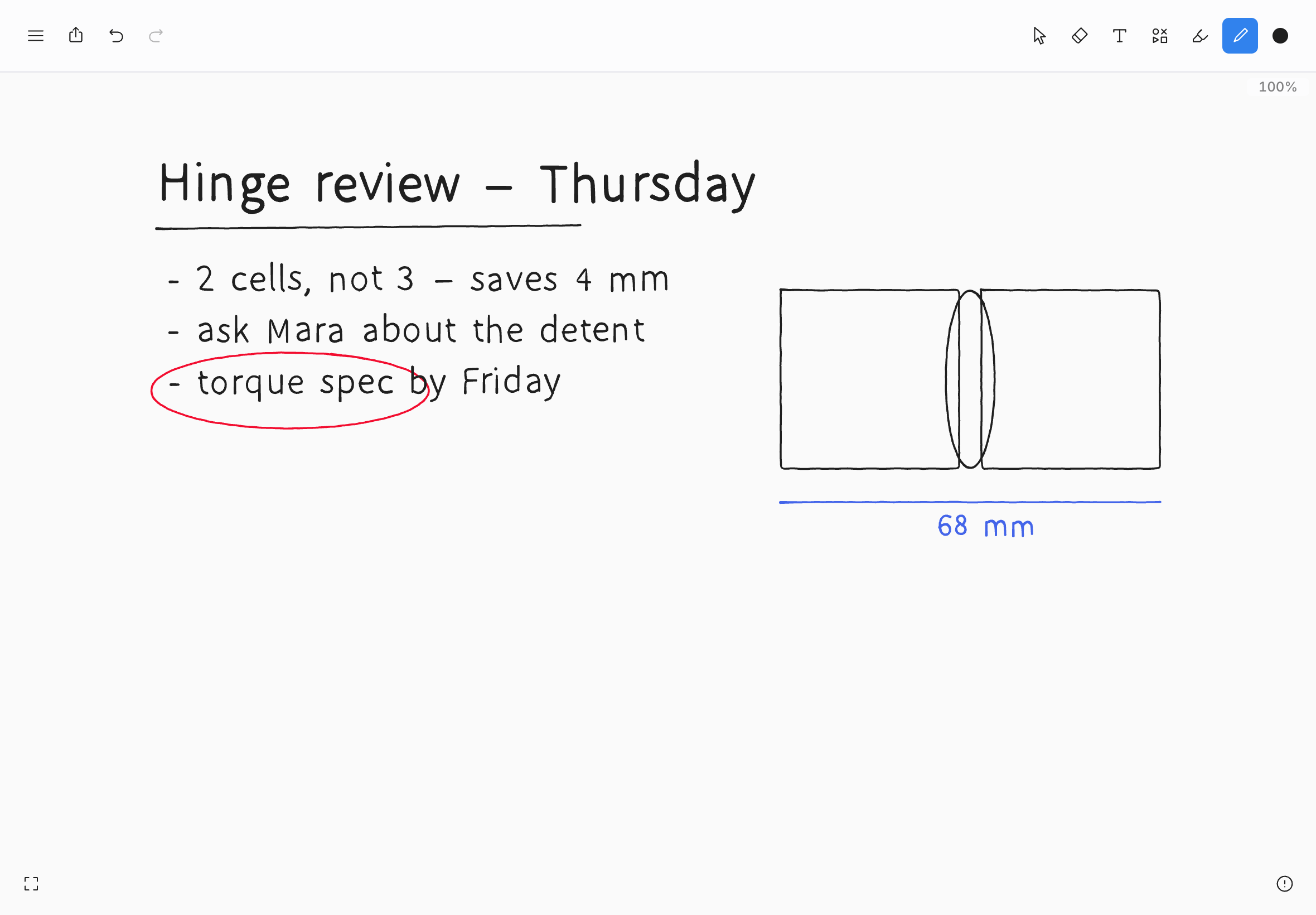
Opening a note takes you to the editor: a canvas that goes on in every direction, with a single bar of controls across the top.
The top bar
On the left:
| Control | What it does |
|---|---|
| Menu | The editor's main menu. See Menus. |
| Share | Sharing and export for this note. |
| Undo and Redo | Step back and forward through your changes. See Undo and redo. |
| Duplicate and Delete | Appear with the Select tool, for the current selection. |
On the right, the tools:
| Tool | What it's for |
|---|---|
| Select | Pick up, move, resize, and rotate. See Selecting. |
| Erase | Remove ink. See Erasing. |
| Text | Type text onto the page. See Text. |
| Shapes | Draw rectangles, ellipses, and other shapes. See Shapes. |
| Highlighter | Wide, translucent ink for marking up. |
| Pencil | Ink. See Pencil and highlighter. |
| Style | The dot at the end shows the current color and size. Choose it to open the style panel. |
On a phone, when the bar runs out of room, Duplicate and Delete fold away first, then Undo and Redo.
Around the canvas
| Where | What you'll see |
|---|---|
| Top left | Status labels that appear only when there's something to know: Offline, Local, or Not saving (see Sync status), Pen mode (see Pen mode), and Back to content when you've scrolled away from everything. Turn on Show clock in Preferences or View › Status bar to show the time here too. |
| Top right | The zoom level. Choose it for the zoom menu. See Moving around the canvas. |
| Bottom left | The minimap button, on the web, iPad, and Android. |
| Bottom right | Send feedback. On iPhone and Android it's at the bottom left. |
Sharing
Choose Share to open the share panel.
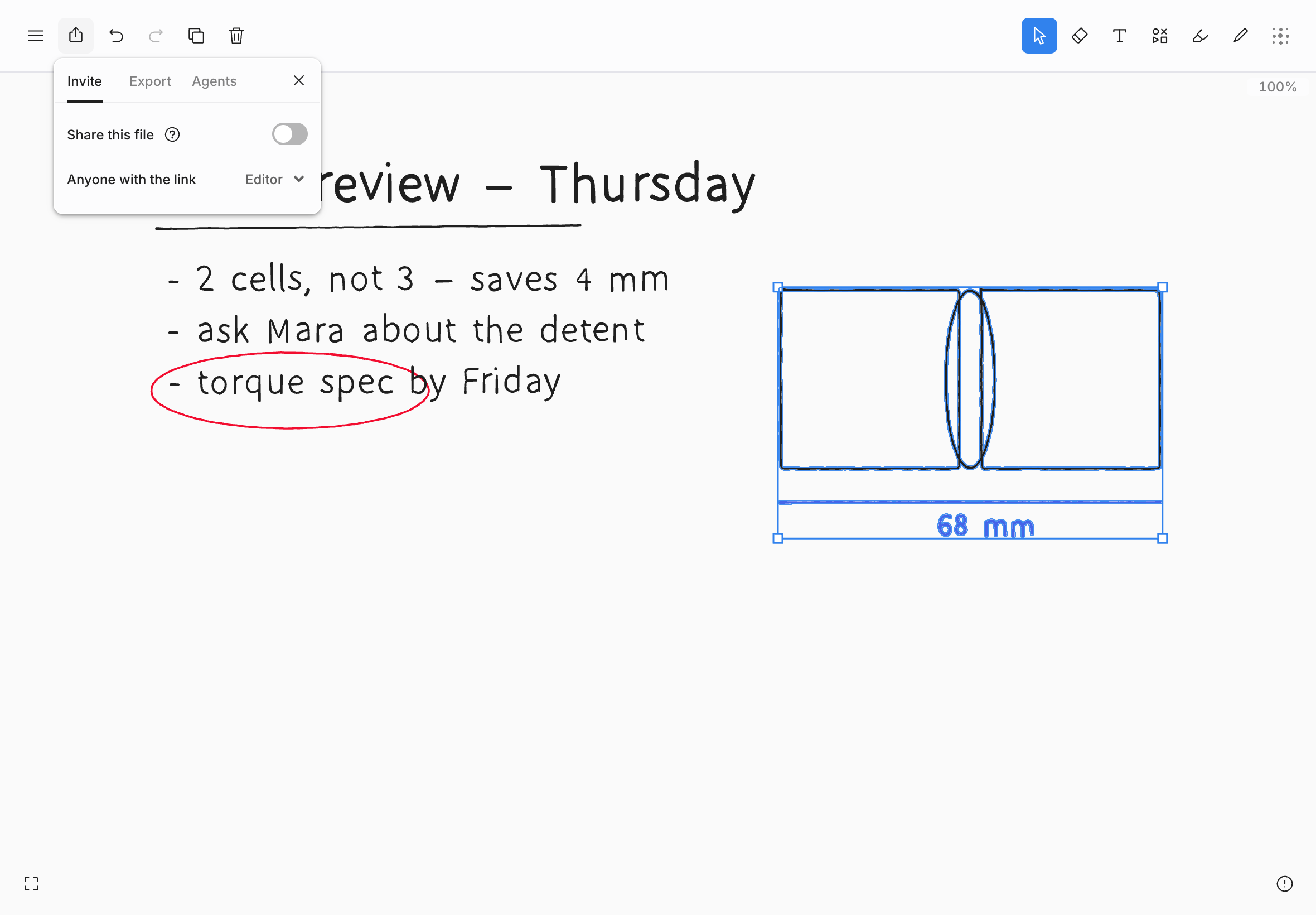
- Invite: share the note with a link. See Sharing.
- Export: save the note as PNG, SVG, or PDF. See Exporting and printing.
- Agents: connect an AI assistant to this note. See AI agents.
Local has no sharing, only export.