Sharing and export
Exporting and printing
Save a note as PNG, SVG, or PDF, copy a selection as an image, print the page, or save and restore a backup of the whole note.
WebiPadiPhoneAndroid
An export is a picture of everything on the page, framed to fit what you've drawn, not what's on screen right now.
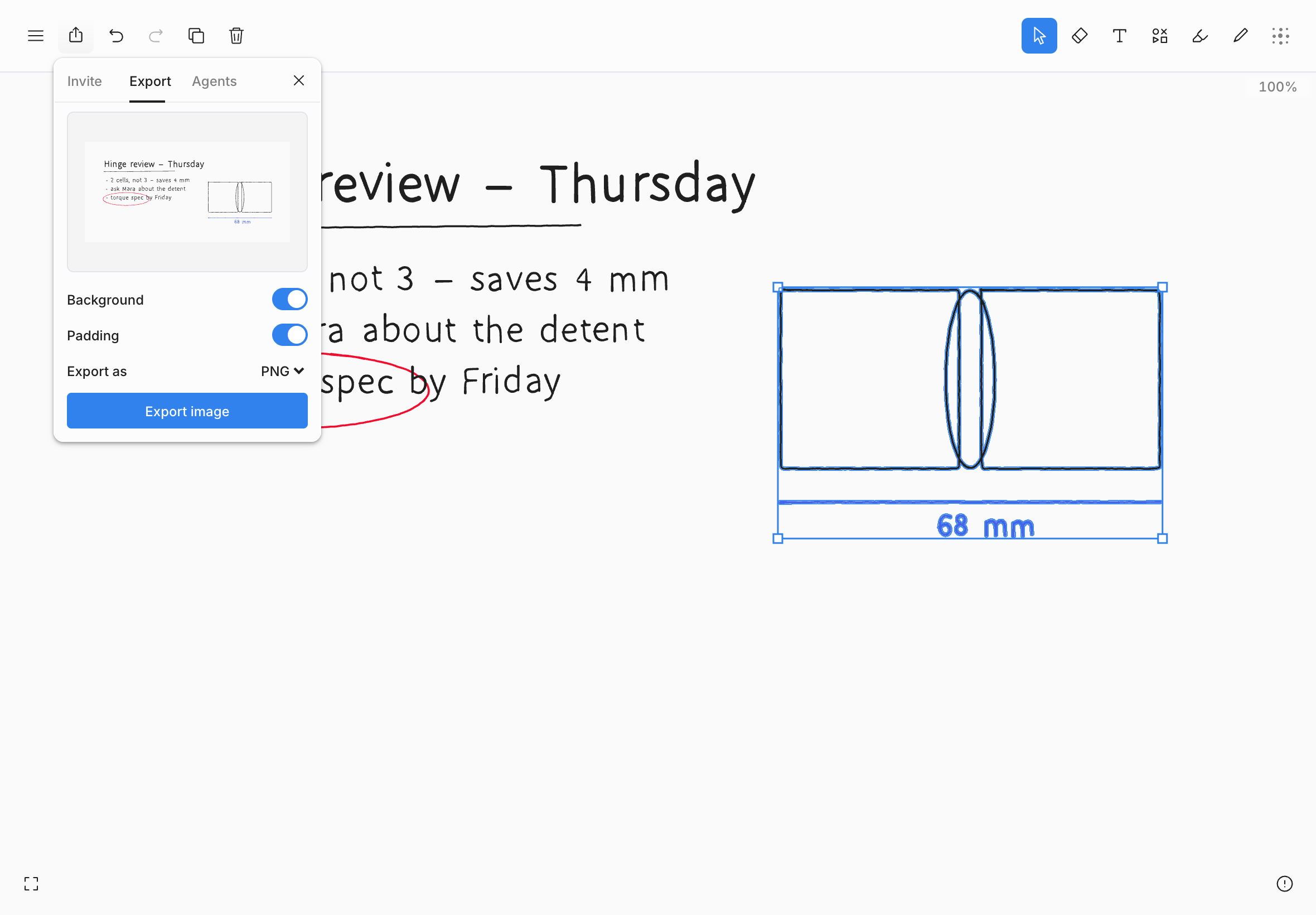
Export a note
- Choose Share in the top bar, then Export. Or choose File › Export… in the editor menu.
- Set the options. The preview shows exactly what you'll get.
- Choose Export image.
If something is selected, the export holds only the selection, and the button reads Export selection. A selection counts while the Select tool is showing it; after you switch to another tool, the export is the whole page again. You can also open the canvas's context menu (right-click, or touch and hold on iPad, iPhone, and Android) and choose Export as › SVG, PNG, or PDF: it exports the selection, or the whole page when nothing is selected, with the Background and Padding you last chose in the Export tab.
| Option | What it does |
|---|---|
| Background | On, the export has the page color and paper pattern behind it. Off, it's transparent, and the preview shows a checkerboard. |
| Padding | Adds a margin around your drawing. |
| Export as | PNG (the default), SVG, or PDF. |
All three formats contain the same drawing; they differ only in the kind of file. Use PNG for messages and documents, SVG to edit the drawing in a vector app, and PDF to print or file it. A PDF is a single page sized to the drawing.
| Platform | Where the file goes |
|---|---|
| Web | Your browser downloads it. |
| iPad, iPhone, and Android | The share sheet opens, so you can save it to Files or Photos, or send it straight to another app. |
Missing images
If the note has images that haven't downloaded to this device yet, tldraw notes tells you before exporting, rather than saving a file with gaps in it. Wait for them to load, or choose Export anyway.
Every export includes text boxes.
An empty page has nothing to export: the panel says Nothing to export.
Copy a selection as an image
To paste part of a note into another app, select it and choose Copy as › PNG in the Edit menu or the context menu, or press ⌘⇧C (on the web and iPad). This is on the web, iPhone, iPad, and Android. On iPhone, iPad, and Android an ordinary Copy also pastes into other apps as a picture.
Choose File › Print…, or press ⌘P on the web. tldraw notes prints the current page, framed to your drawing, on plain paper: the pattern is left out.
Save a backup
Choose File › Save backup… to save the whole note as one .tldn file: every page object, with its images. Use it to keep your own copy of a note. A backup holds the note's content, not its sharing or its history.
| Platform | What happens |
|---|---|
| Web | The file downloads, named after the note. |
| iPad, iPhone, and Android | The share sheet opens, so you can save it to Files or send it to another app. |
If some images haven't downloaded to this device, the backup can't include them. On iPad, iPhone, and Android you're told how many before the file is saved, and Export anyway saves it without them; on the web the file downloads without them and a notice says how many were left out.
Restore a backup
On the web, open the menu on the dashboard and choose Restore backup…, then pick a .tldn file. It becomes a new note in your library and opens; nothing you already have is changed. A backup saved by any earlier version of tldraw notes restores. One saved by a newer version asks you to update first. Restoring a backup needs a subscription, because the note goes into your synced library.