Using the canvas
Text
Type formatted text onto the page, choose a font and alignment, and wrap or resize boxes.
WebiPadiPhoneAndroid
Choose Text in the toolbar, or press T, to type directly onto the canvas.
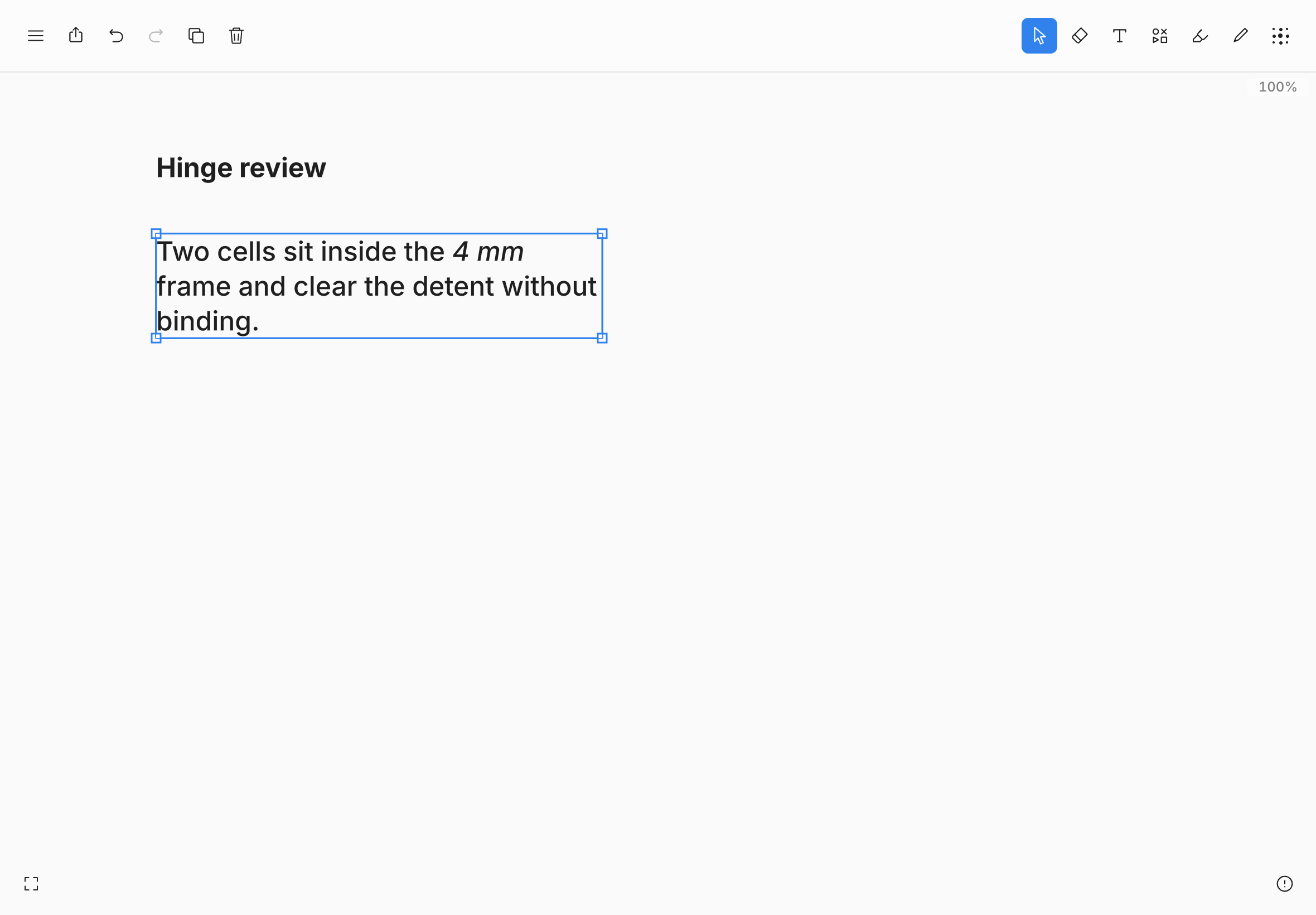
Add text
- Click or tap on the canvas for a box that widens as you type.
- Drag sideways to draw a fixed-width box that wraps lines as you type.
Pressing on existing text with the Text tool starts a new box there. Press ↵ for a line break. To finish editing, click or tap outside the box on the canvas. On the web, iPad, and iPhone, Esc also finishes; on the web, ⌘↵ does too.
Format text
Open the style panel while editing text, with the Text tool selected, or with text selected to set its color, Opacity, font (Sans, Serif, or Mono), and alignment (Align left, Align center, or Align right).
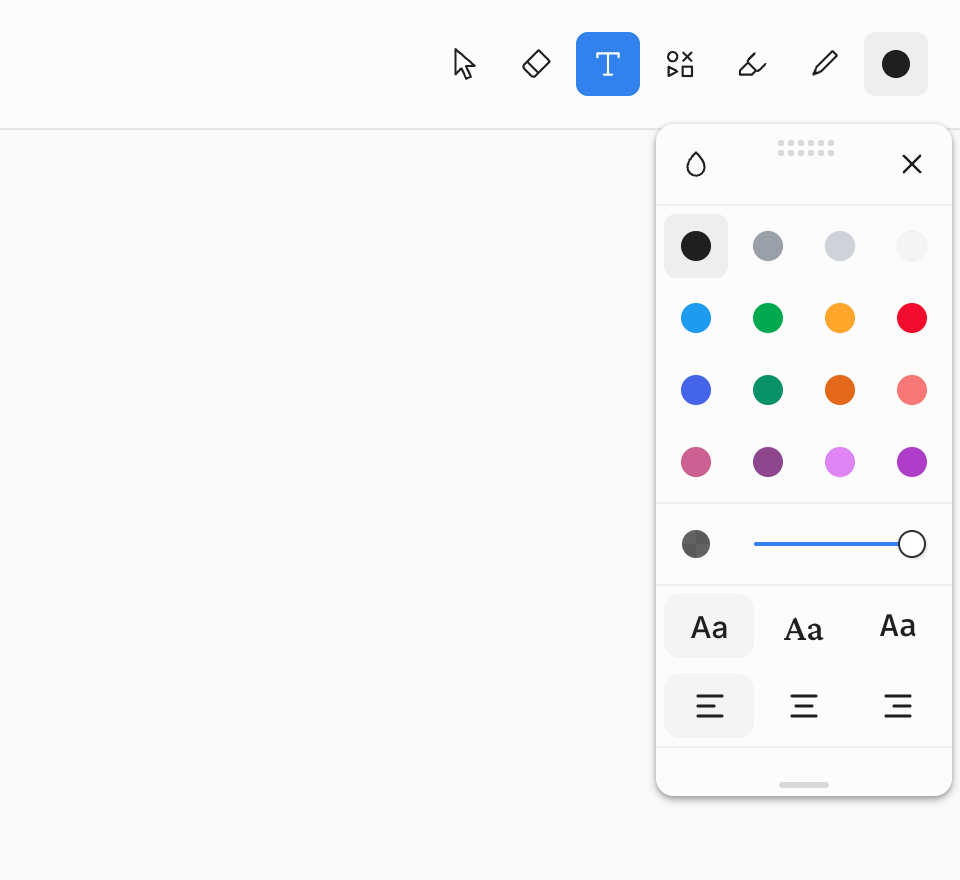
| Platform | Bold, italic, underline, and strikethrough |
|---|---|
| Web | ⌘B, ⌘I, ⌘U, and ⌘⇧S. |
| iPad and iPhone | ⌘B, ⌘I, ⌘U, and ⌘⇧X with a hardware keyboard, or the text edit menu on screen. |
| Android | Choose Bold, Italic, Underline, or Strikethrough in the style panel while editing, or press CtrlB and CtrlI on a hardware keyboard. |
Text takes no stroke size, line style, or quick styles.
Edit, resize, and erase
- Edit again. With Select, double-click or double-tap a text box. On Android, you can also select one text box and press ↵.
- Scale. Drag a corner, top, or bottom handle to resize the text proportionally.
- Reflow. Drag the left or right side handle to change the box's width and wrap lines without changing the text size.
- Erase. Touching a text box with Erase deletes the whole box in any eraser mode (Partial, Object, or Mask). One undo brings it back.
Exporting text
PNG, PDF, SVG, printing, the export preview, and Copy as › PNG include text on every platform. An SVG draws text as outlines, so it looks the same wherever it is opened, and the words can't be selected or edited there.