Using the canvas
Moving around the canvas
Pan, zoom, rotate, and find your way back.
WebiPadiPhoneAndroid
The canvas has no edges. Here's how to get around it.
Pan and zoom
| Input | Pan | Zoom |
|---|---|---|
| Touch | Drag with two fingers | Pinch |
| Trackpad | Scroll with two fingers | Pinch, or ⌘ and scroll |
| Mouse | Scroll wheel; or hold Space and drag; or drag with the middle button | ⌘ or Ctrl and scroll |
| Keyboard | = and -, or with ⌘ |
Flick while panning and the view coasts to a stop.
With the Select tool, you can also zoom with one finger: tap, then touch again and hold, and drag up or down.
The zoom menu
Choose the zoom level at the top right.
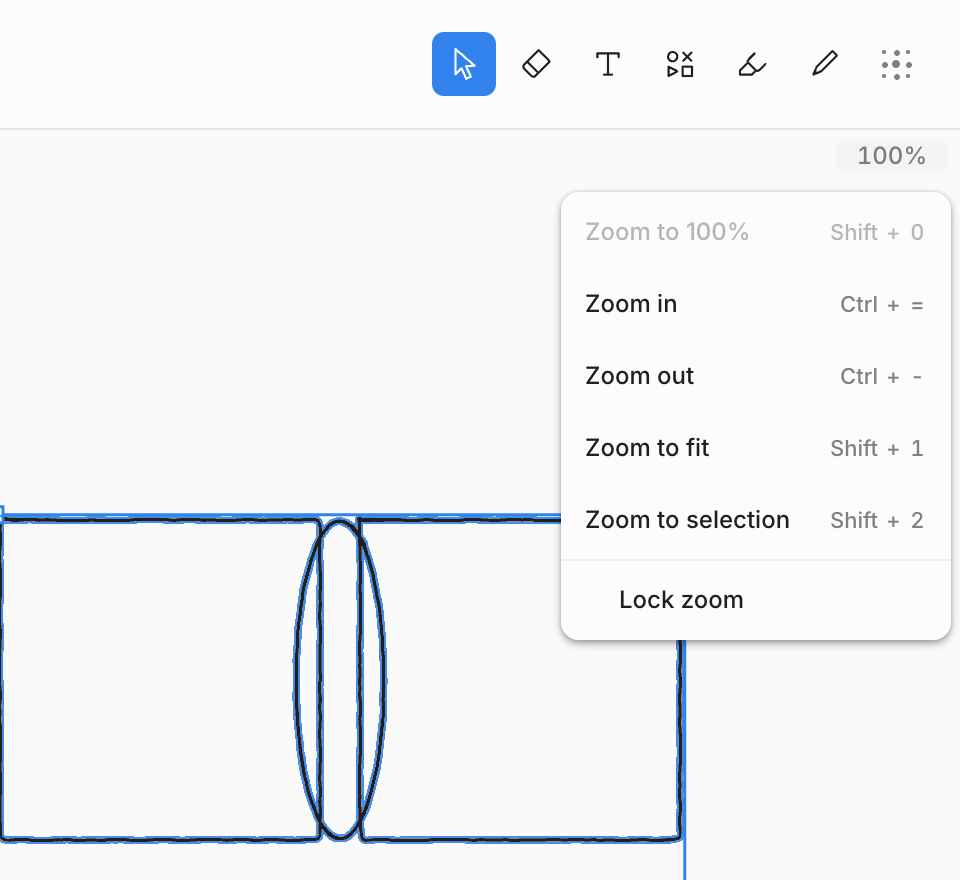
| Command | Keyboard |
|---|---|
| Zoom to 100% | ⇧0 |
| Zoom in, Zoom out | =, - |
| Zoom to fit | ⇧1 |
| Zoom to selection | ⇧2 |
| Lock zoom |
Lock zoom keeps the zoom where it is, so you can't change it by accident while you write. You can still pan.
Back to content
Scroll away from everything and a Back to content label appears at the top left after a moment. Choose it to bring your work back into view.
The minimap
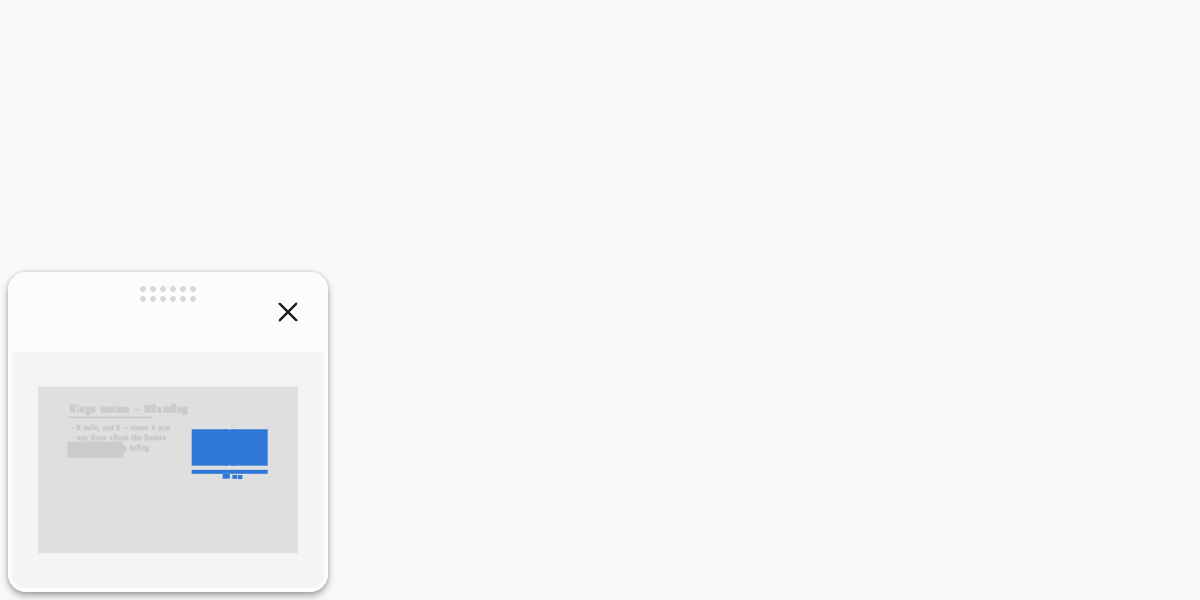
Choose the minimap button at the bottom left, or View › Show minimap, for an overview of the whole note. Drag in it to move around, or click where you want to go. Drag the panel by its handle to put it elsewhere. The minimap isn't on iPhone.
View options
These are in the editor's View menu.
| Option | What it does | Default |
|---|---|---|
| Horizontal, Vertical, Free | Horizontal and Vertical scroll in one direction only, like a long strip of paper, and lock the zoom. | Free |
| Pinch to zoom | Turn off to pinch without zooming. | On |
| Mouse wheel zoom | The scroll wheel zooms instead of panning. | Off |
| View rotation | Twist with two fingers to turn the canvas. | Off |
| Edge scrolling | Dragging a selection to the edge of the screen moves the view. | On |
Zoom, view mode, and these options belong to your device: they never change the note for anyone else.